

FAQ XolidoSign
How to electronically sign a PDF document?
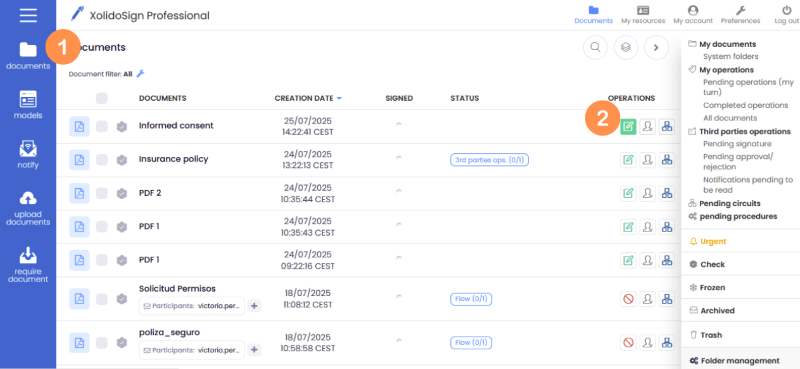
1. Access the list of documents.
2. Find the document you want to sign and click on the "Customized signature" icon.
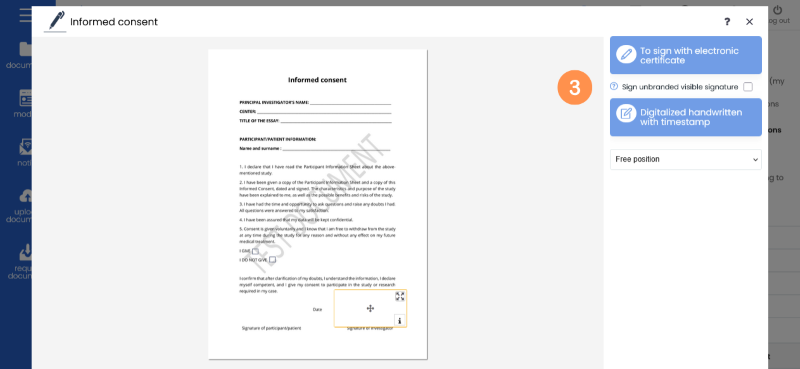
3. Select the signature you wish to make:
- Signature with electronic certificate:
- With visible mark.
- No visible mark.
- Handwritten signature with stamp (without electronic certificate).
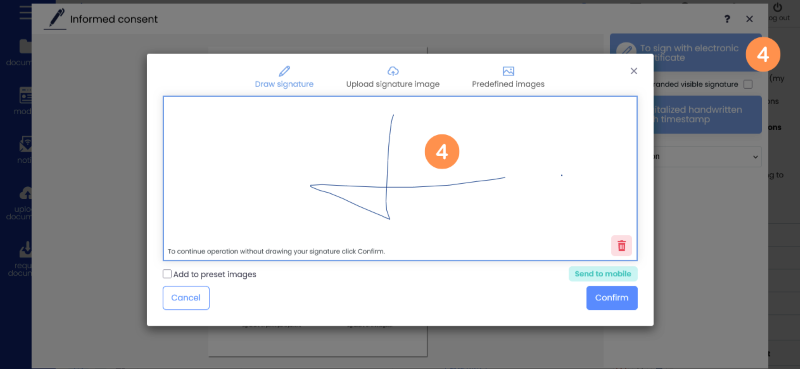
4. Certified electronic signature with visible mark.
- Choose the position of the signature, if it is not predefined.
- Click on “Sign with electronic certificate.”.
- Optional: draw your handwritten signature.
- Click “Confirm” to start the signing process.
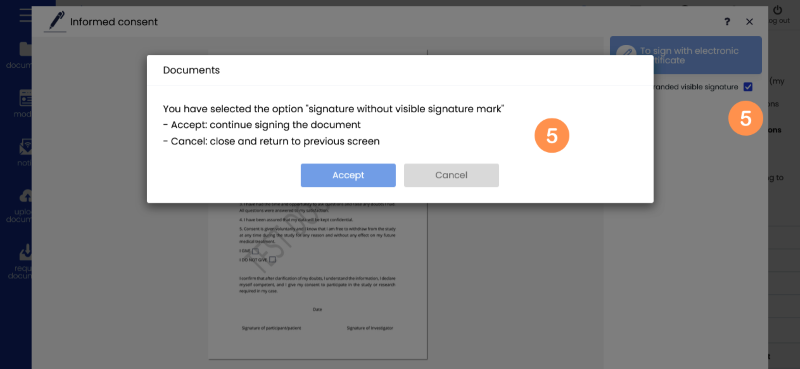
5. Electronic signature with certificate without visible mark.
- Select the option "“Sign without visible signature mark.”".
- Click “Sign with electronic certificate” to start the signing process.
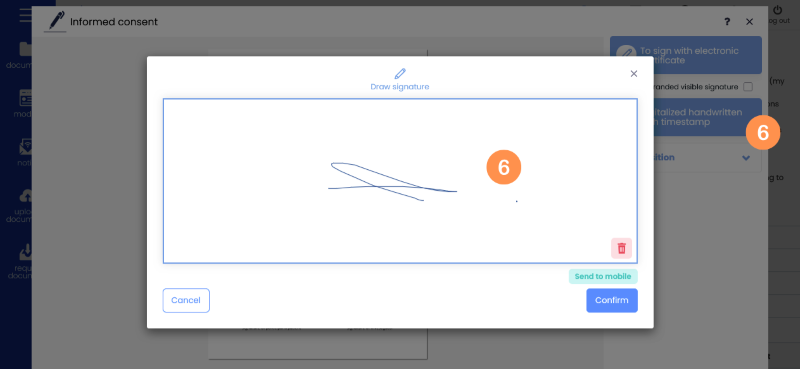
6. Handwritten signature stamped.
- Choose the position of the signature, if it is not predefined.
- Click on “Handwritten signature stamped.”
- Draw your signature and press “Confirm” to start the signing process.
XolidoSign Solutions


Xolido products
IT infrastructure and cloud services
About us