

FAQ XolidoSign
Reminders of pending operations to be performed
MANUAL REMINDERS
OPTION 1
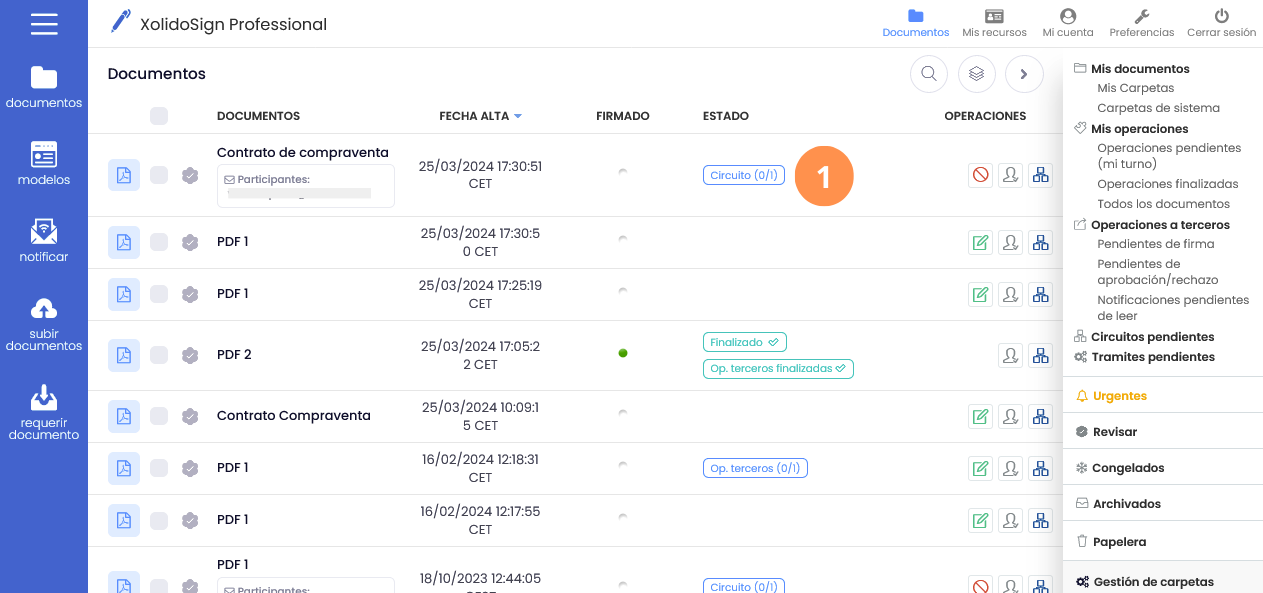
If you've requested a signature, approval, or sent a notification and the recipient hasn't yet taken any action, you can send them a reminder of the pending transaction.
XolidoSign Professional allows you to send manual and automatic reminders..
MANUAL REMINDERS
OPTION 1
1. In the Documents tray, from the "status" of each pending document.
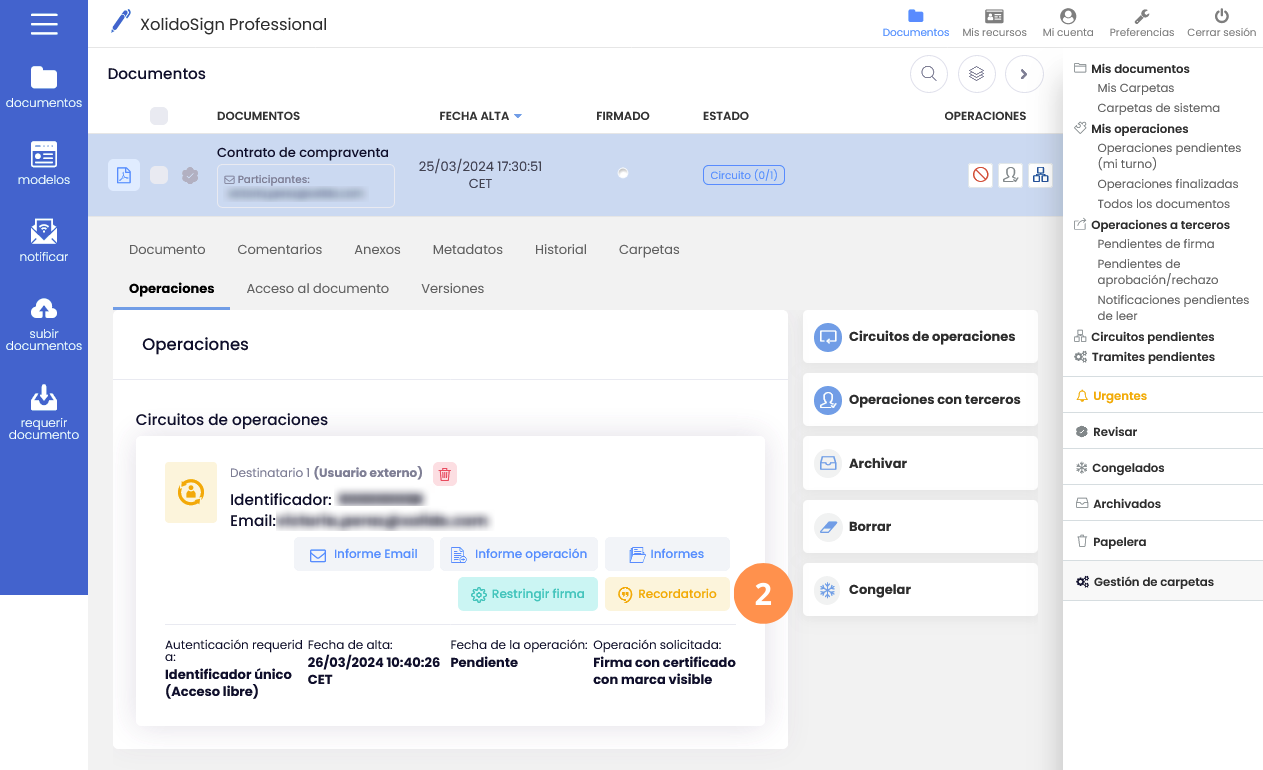
2. Clicking on the status displays the document's status. If the transaction is pending, a "Reminder" button appears.
3. On the transaction you want to send a reminder for, click the "Reminder" button. A new window will appear, allowing you to send the reminder to the same email address it was initially sent to, or to a different email address.
OPTION 2
OPTION 2
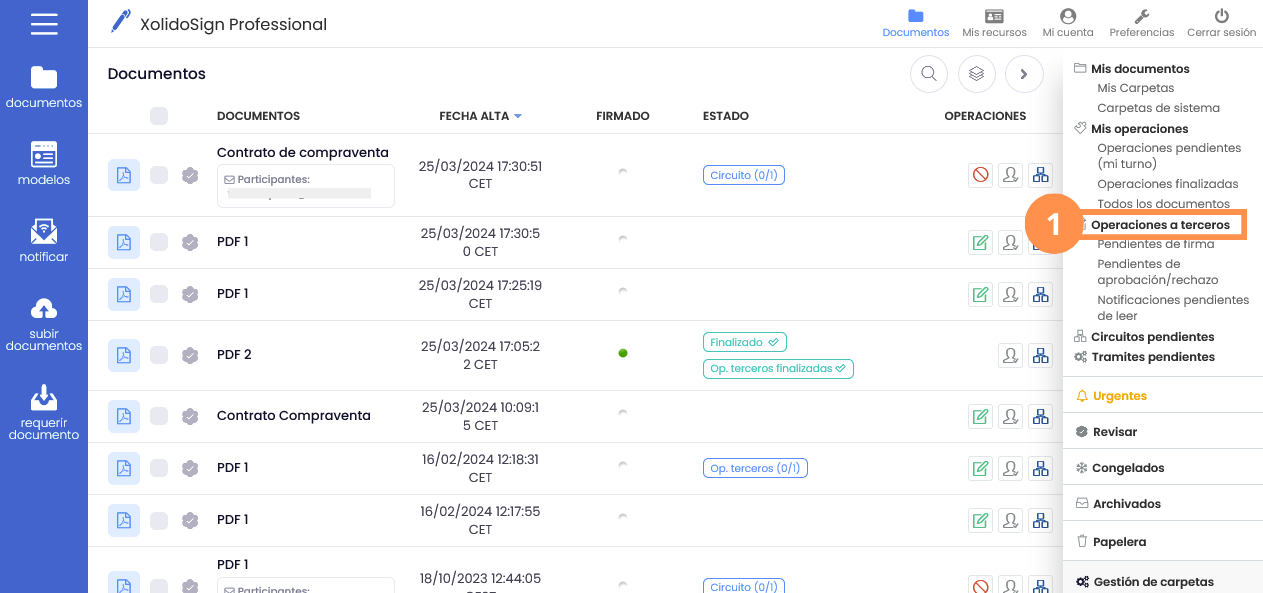
1. From the "Third-Party Operations" filter, select each of the options:
- Pending signature
- Pending approval/rejection
- Notifications pending reading
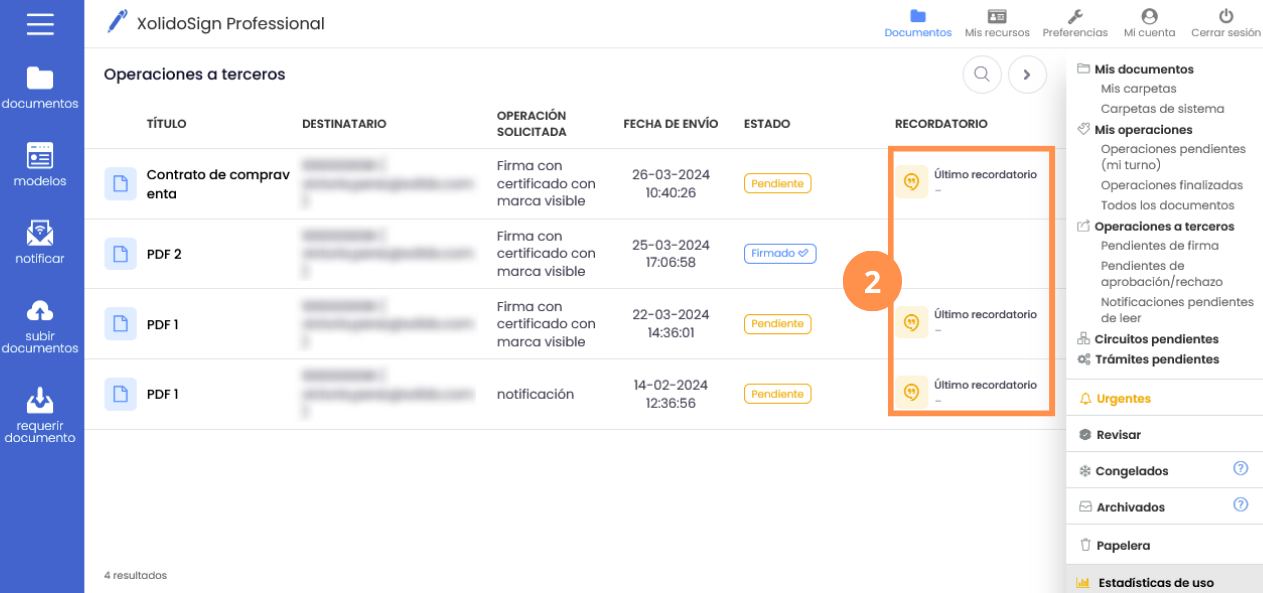
2. To send a reminder for a transaction, in the "Reminder" column, click the "Send reminder" icon.
When you press it, the reminder will be sent automatically.
OPCIÓN 3
OPTION 3
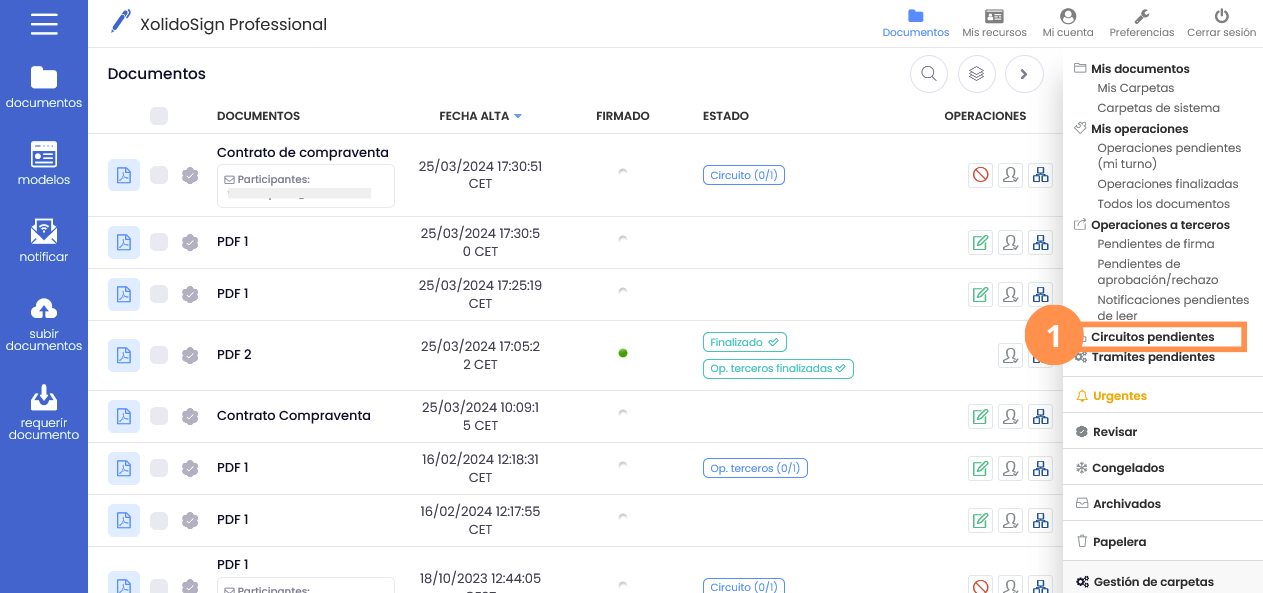
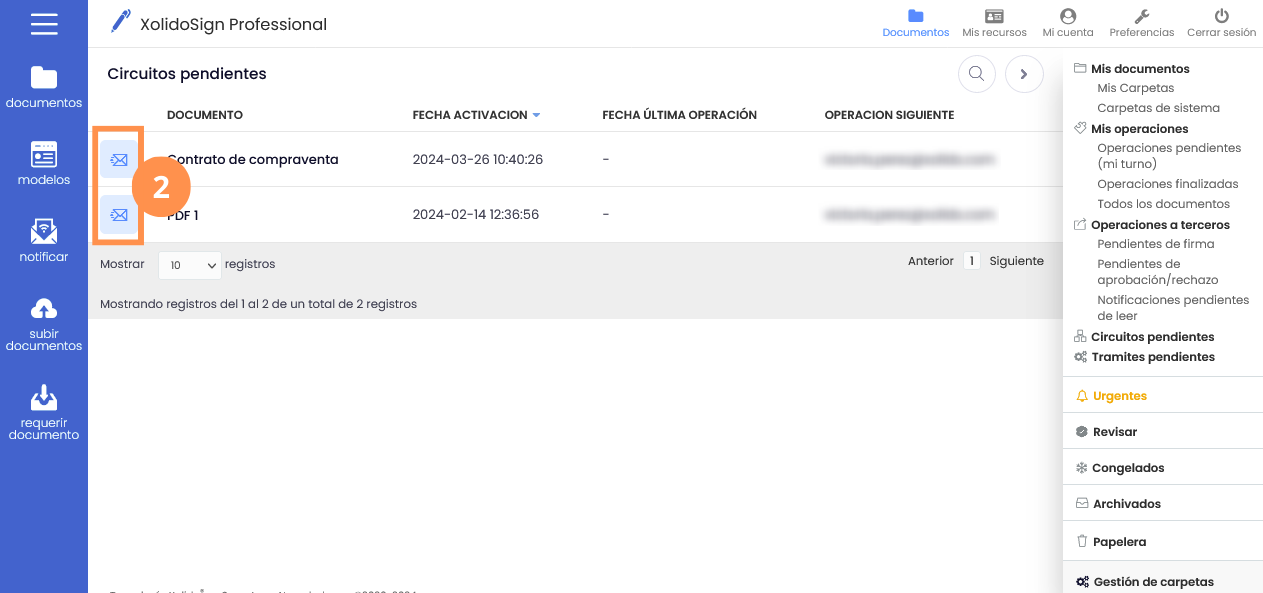
1. From the "Pending Circuits" filter.
2.To send a reminder for a transaction, click on the "Send reminder" icon.
When you click on it, a new window will appear allowing you to send the reminder to the same email address it was initially sent to, or send the reminder to a different email address.
AUTOMATIC REMINDERS
AUTOMATIC REMINDERS
Automatic reminder settings while the requested operation is pending.
- You can configure the frequency and maximum number of reminders.
- Reminders will be sent automatically according to the settings established or until the operation is performed.
When you set up "Automatic Reminders," they are activated for all documents that have a pending transaction.
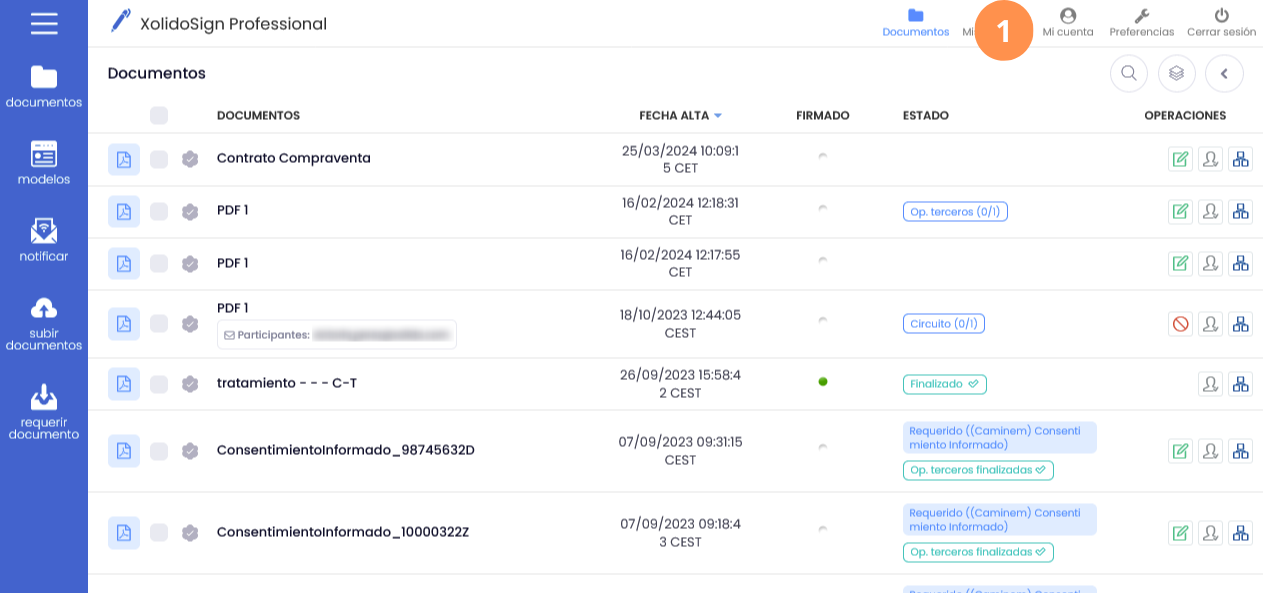
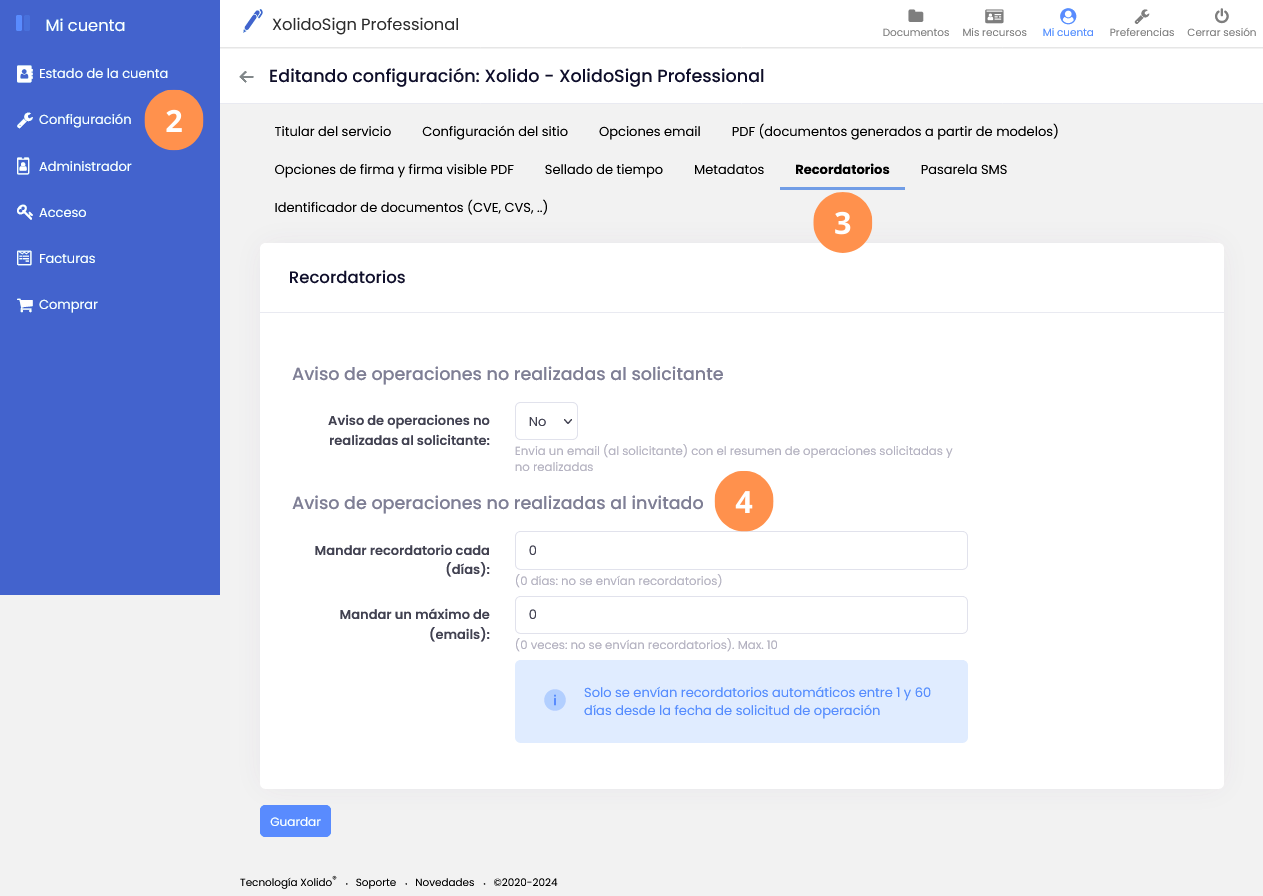
1. Click on "My Account".
2. Access the "Settings" menu.
3. Click on the "Reminders" submenu.
4. In the "Notification of unfulfilled transactions to the guest" section, configure the frequency of the reminders and the maximum number of emails to be sent.
XolidoSign Solutions


Xolido products
IT infrastructure and cloud services
About us