

FAQ XolidoSign
CVE operation in XolidoSign Professional and how to verify a document
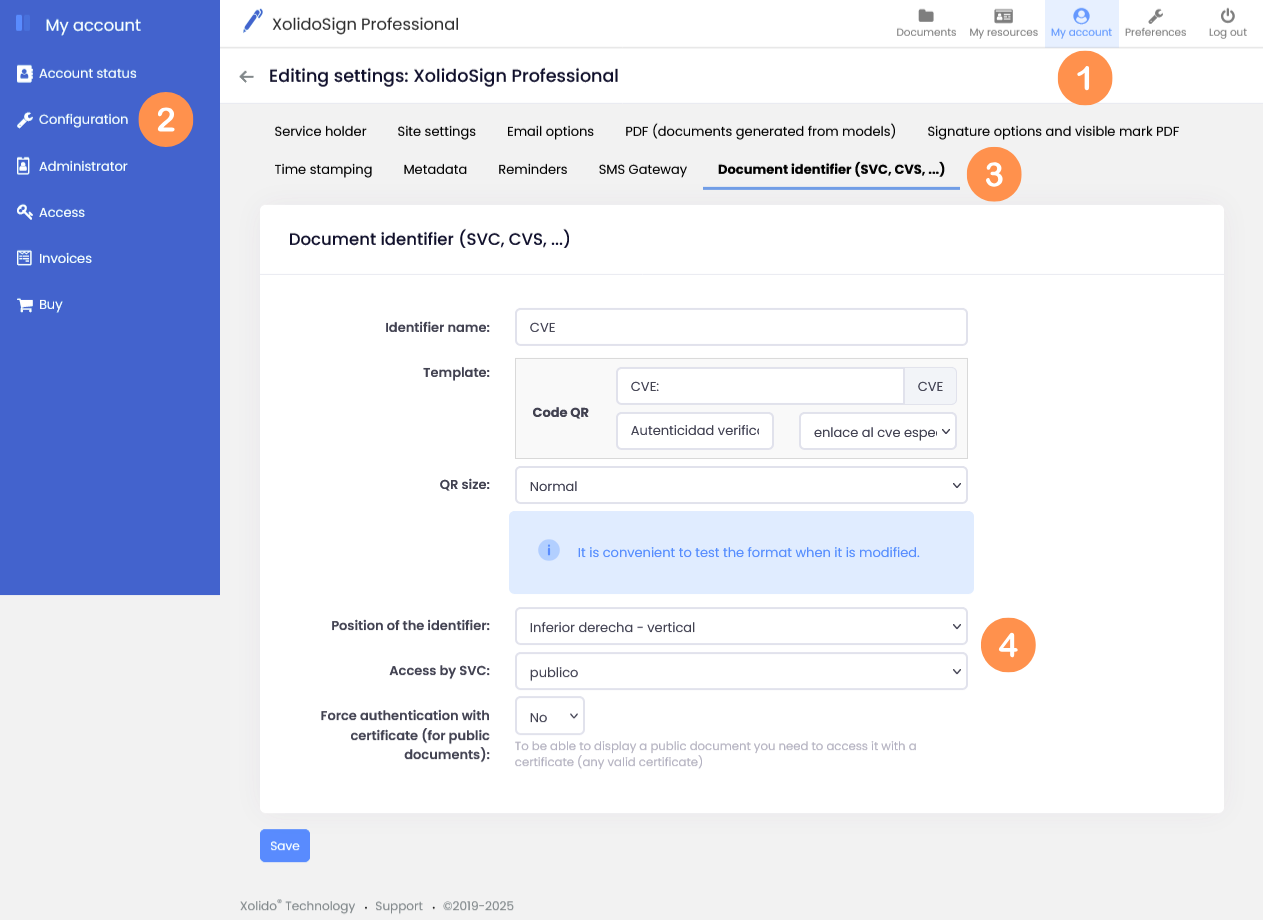
1. Configure CVE in the administration area
The XolidoSign Professional service administrator can configure the CVE policy that will be used by default in all documents uploaded to the application. To do this, go to My account > Configuration > Document identifier (SVC, CVS,...).
CVE Configuration:
- Identifier name: CVE
- Template: In these fields, you can configure the text that will appear printed next to the QR code. The first field is located on the first line and the second field on the second line.
- QR size: is the size of the QR code. Select between “Normal” or “Large” size.
- Position of the identifier: select a position.
- Access by SVC: This field is used to configure the document access policy.
- Public: Anyone with the CVE can access the document.
- Restricted: Only users (NIF) who are associated with the document can access it. Users are associated through their NIF from the document itself. (document file > document access tab).
- No access: No one can access the document from the CVE.
- Public: Anyone with the CVE can access the document.
- Force authentication with certificate (for public documents): In this case, anyone wishing to verify the document must authenticate themselves with an electronic certificate.
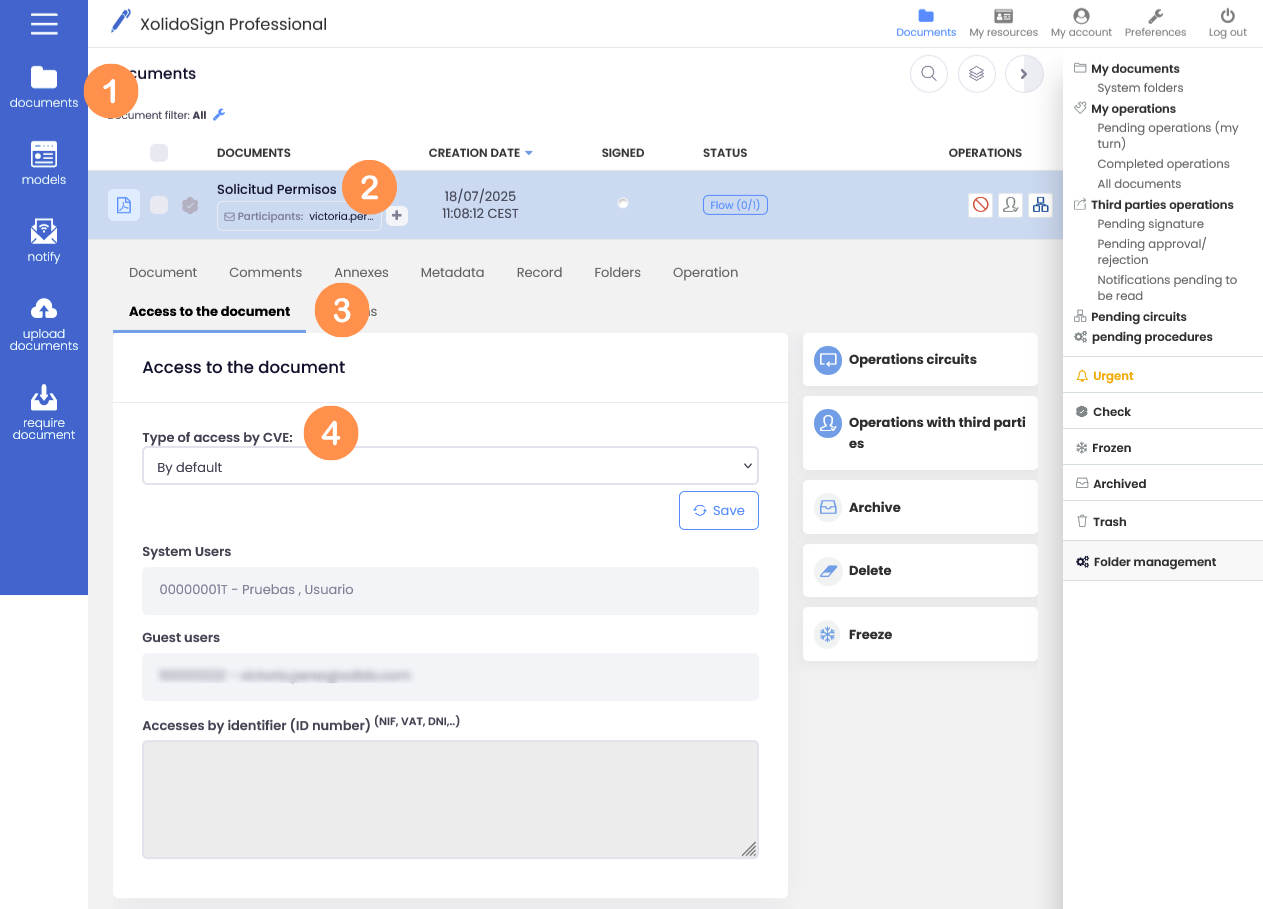
2. Modify the CVE access policy for each document
In the public area of XolidoSign Professional, users can modify the CVE access policy that has been defined by default in the administration area, from each document's file.
Document details > Access to document
In the drop-down menu "Type of access by CVE" Select the policy you want to apply to the document and click Save.
In the case of access "Restricted", indicate in the field "Restricted access by identifier" the tax identification numbers (NIFs) that will have access to the document and save it. In this case, individuals who wish to verify the document must access it with an electronic certificate containing one of the restricted NIFs..
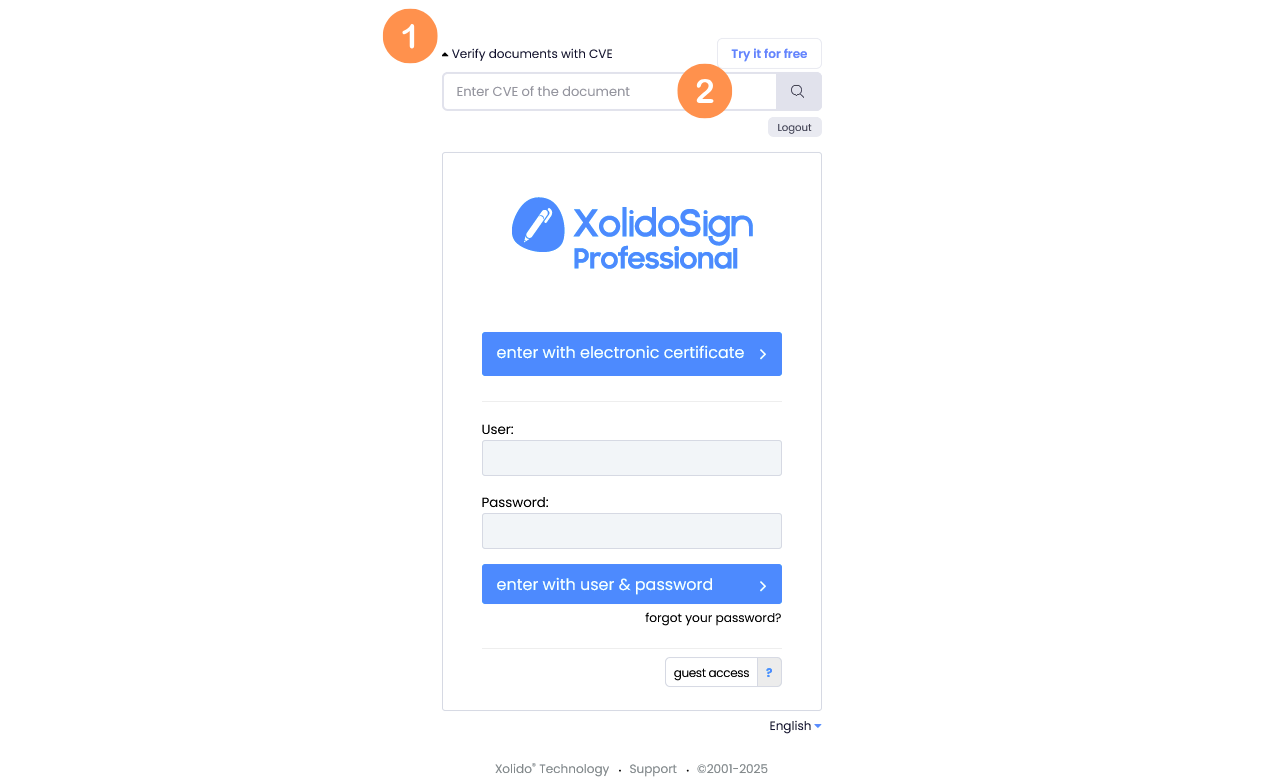
3. Verify document in XolidoSign Professional.
Documents generated or uploaded to the XolidoSign Professional application can be verified using the search engine available on the XolidoSign Professional login page. (https://professional.xolidosign.com).
Click on "Verify documents with CVE" and then enter the CVE of the document in the search engine.
XolidoSign Solutions


Xolido products
IT infrastructure and cloud services
About us