

FAQ XolidoSign Desktop
I'm getting an error saying that the certificate is not trusted or that the chain cannot be completed
If, when signing a document, you see a warning stating that the certificate you are trying to use was not issued by a trusted certificate authority, it may be because you do not have the root or intermediate certificate of the certificate-issuing authority (FNMT, ACCV, etc.) installed.
How to install the root certificate
1. Download the root certificate file (usually in .cer or .crt format) from the certificate authority (CA).
2. Once downloaded, install the root certificate on your computer.
Administrator permissions are required.
To do this, right-click on the downloaded certificate and select “Install Certificate.”
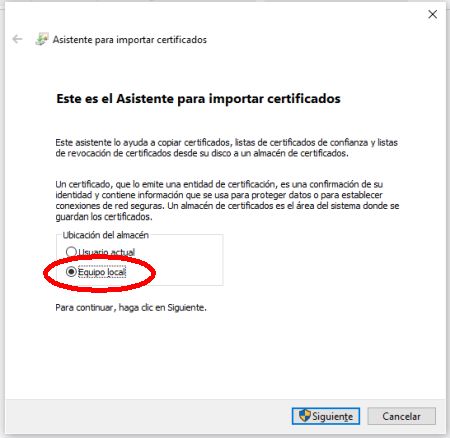
- Select “Local computer” and click Next.
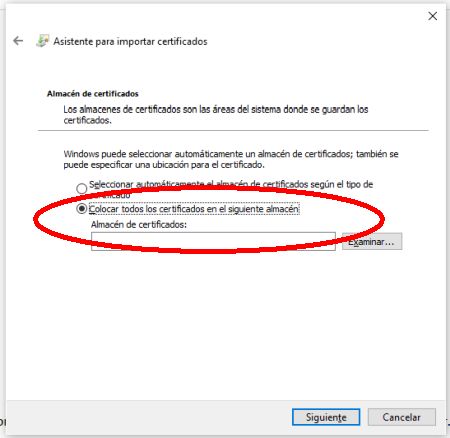
- Select “Place all certificates in the following store” and click Browse…
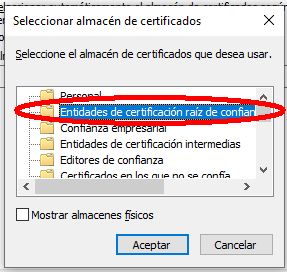
- Select “Trusted Root Certification Authorities” and click OK.
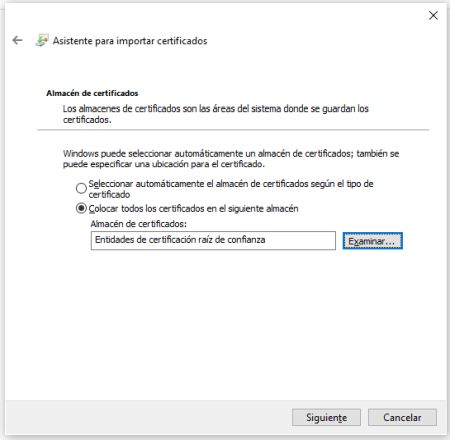
- Click Next.
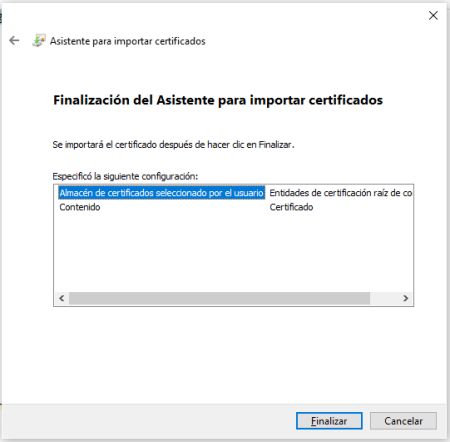
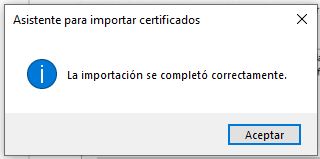
- Click Finish.
How to install the intermediate certificate
1. Download the intermediate certificate file (usually in .cer or .crt format) from the certificate authority (CA).
2. Once downloaded, install the intermediate certificate on your computer.
Administrator permissions are required.
To do this, right-click on the downloaded certificate and select “Install Certificate.”
- Select “Local computer” and click Next.
- Select “Place all certificates in the following store” and click Browse…
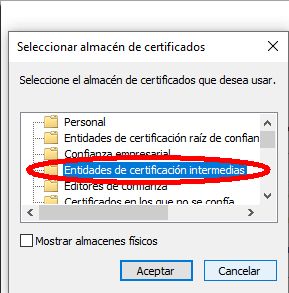
- Select “Intermediate Certification Authorities” and click OK.
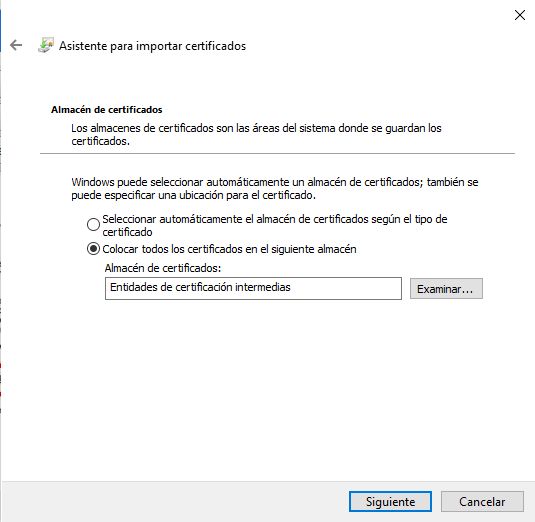
- Click Next.
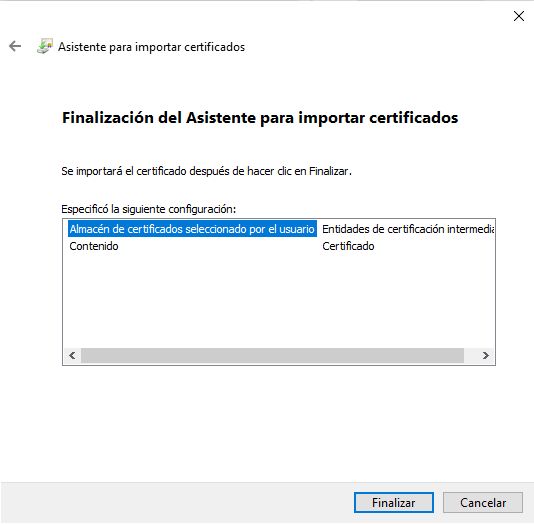
- Click Finish.

XolidoSign Solutions


Xolido products
IT infrastructure and cloud services
About us